Image ResizerImage Tools
Resizes images to exact pixels or a percentage, one at a time or in batches.
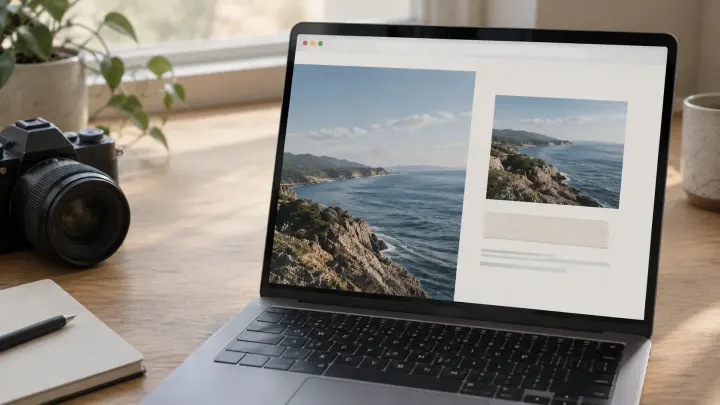
A photo from a phone is often wider than the slot it fills, and the extra pixels are what the visitor downloads. Resize first, then pick a format, then check the file you are about to publish.
Someone exports a photo, drops it into the page, and the layout looks fine. The browser still fetches every pixel in that file. A hero that displays at 1200 pixels wide does not need a 4000-pixel original, and a thumbnail does not need the full frame at all.
Size on disk and size on screen are different measurements. Quality settings matter after the dimensions are right. The image compressor's own notes put it plainly: scaling down saves more than any quality setting. If you compress first and resize later, you pay to encode detail you then throw away.
Keep the camera original somewhere else. Lossy compression cannot be undone. The copy that goes on the site is the one you are allowed to make smaller.
Start with the Image Resizer. You can set width and height in pixels or as a percent, keep the aspect ratio, or force an exact box, and you can run a folder of photos in one go. Match the longest side to the largest size that slot will actually display, including a sharper screen if you serve one. A logo that is 64 pixels in the header does not need a 2000-pixel PNG.
Next, format. Current versions of Chrome, Edge, Firefox, Opera, and Samsung Internet show WebP, and Safari has shown it since version 14 in 2020. The Image to WebP tool leaves width and height alone. PNG, GIF, BMP, ICO, and lossless WebP sources become lossless WebP, so pixels, including transparent ones, stay the same. JPG and other lossy sources become lossy WebP at quality 90. Email clients and older desktop software are less consistent, so keep a JPG if the same picture has to survive a newsletter or a print shop.
Lossless is the wrong default for photographs. On the tool's sample photo, a 163 KB JPG (1600 × 1067) became a 134.6 KB WebP at the same dimensions, while ticking Lossless on that photo produced an 877 KB file. Exact pixels cost space once the source is already a photo. A small PNG logo with transparency can go the other way: the sample logo dropped from 3.8 KB to 2.2 KB and stayed identical pixel for pixel.
If quality 90 is still heavier than you want, use the Image Compressor and set Save as to WebP. Quality 75 is a sensible start for photos. The range 70 to 85 is aimed at photos on websites and in email, where the result is hard to tell from the original at normal size. 85 to 95 is for files you may still edit or print. 50 to 70 softens fine detail and suits thumbnails. Below 50, edges block and smooth areas band. PNG ignores the quality slider because it is lossless; Reduce to 256 colors turns it into a palette image, which suits logos, charts, and screenshots.
JPG output from the compressor uses MozJPEG. WebP uses libwebp and AVIF uses libaom, both compiled to WebAssembly, so the bytes do not depend on which browser you happen to have open. On that same sample photo, JPG at quality 75 was 63 KB, WebP at quality 75 was 40 KB, and AVIF at quality 50 was 17.3 KB. Busy detail such as grass or gravel compresses less than sky or a flat wall, so treat those figures as one picture, not a promise for yours. AVIF holds up better at low numbers than JPG. Encoding it is slower, and a large photo can take a few seconds.
Drag the comparison divider before you download. If a same-format result would be larger than the original, the compressor keeps the original. You can process up to 20 images at once, 50 MB and 50 megapixels each, and download a ZIP. Animated GIF and WebP files keep only the first frame. HEIC photos from iPhones open in Safari; in other browsers, export JPG first.
Resize first. A file that is wider than the slot on the page carries pixels nobody sees, and shrinking those dimensions cuts more bytes than lowering quality on the full frame.
Current Chrome, Edge, Firefox, Opera, Samsung Internet, and Safari since version 14 can show WebP. Keep a JPG when the same image has to open in email clients or older desktop software.
Start at 75. The compressor treats 70 to 85 as the range for photos on websites and in email. Go higher if you will edit or print the file later, and lower only for thumbnails.
PNG compression here is lossless, so the quality slider does not apply. Reduce to 256 colors if it is a logo, chart, or screenshot. Photos are usually smaller as WebP or JPG.
Often used together with the Compress images before they go on a page.
Resizes images to exact pixels or a percentage, one at a time or in batches.
Converts JPG, PNG, GIF, and other images to WebP without visible quality loss.
Shrinks JPG, PNG, WebP, and AVIF files with a quality slider and a before/after view.