Image Metadata RemoverImage Tools
Shows and removes EXIF, GPS, XMP, and IPTC data from JPG, PNG, and WebP files.
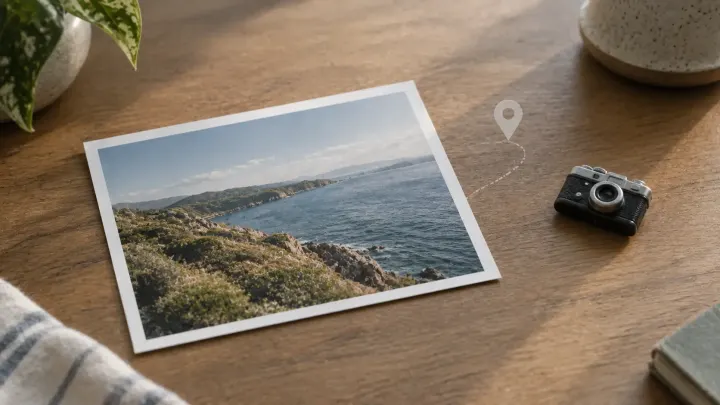
The picture, the PDF, and the Word file can carry a second record: where the photo was taken, who last saved the document, and which app exported the PDF. That record survives in the attachment even when you cannot see it on the page.
You attach a photo of a desk, a signed PDF, or a spreadsheet, and the message shows the content you meant. The file can also hold a side record. On a JPG, PNG, or WebP that record is often EXIF: GPS coordinates, the time the shutter fired, the camera or phone model, sometimes a serial number, plus XMP from whatever edited it and IPTC fields such as author. A phone frequently stores the picture sideways and adds an orientation tag so apps turn it upright.
A PDF keeps its own properties: author, the applications that produced it, dates, and an XMP stream that often repeats them. A Word, Excel, PowerPoint, or OpenDocument file usually stores the author, the last person who saved it, the company, creation and save dates, a revision number, total editing time, and the template name.
Large social networks often strip location from the copies they show other people. Photos sent by email, as a cloud download, or as a file in a chat app usually keep the block. If you are handing someone the file, assume they can read the fields. Cleaning the copy is the step you control. The original on your disk can stay untouched.
Open the photo in the Image Metadata Remover. It lists what it found, and it marks GPS positions and serial numbers. The compressed pixels are copied byte for byte, so this pass does not recompress the picture. Leave Keep the color profile on unless you have a reason to drop it. For the rotation tag, the default writes back a tiny EXIF block that contains only orientation, so the photo does not show up sideways. The other option turns the pixels upright and saves JPG at quality 95, which leaves no EXIF at all and does re-encode.
JPG cleaning removes APP1 (EXIF and XMP), APP13 (IPTC), comments, and other application blocks. It keeps the JFIF header, the ICC profile, and the Adobe block some JPGs need in order to decode. PNG cleaning removes text chunks and the EXIF and time chunks. WebP cleaning removes the EXIF and XMP chunks. You can run up to 20 files, 50 MB each. AVIF and HEIC are outside this tool; convert them first. Anything that is actually drawn in the picture, a street sign or a face, stays. No metadata tool can crop that out.
For a PDF, use the PDF Metadata Remover. You see the author, the apps, the dates, and the XMP before you download the clean copy. Words printed on the pages stay, including a name in a header or on a signature line. EXIF inside a photo that was placed on a PDF page is not touched here. Strip the photo first, then place it, if the location must not ride along inside the image. Password-protected PDFs cannot be opened.
For Word, Excel, PowerPoint, and OpenDocument, use the Document Metadata Remover. It empties the property records. Text, images, tables, and styles are copied as they were. Comments and tracked changes are part of the document, so they remain; the tool counts them, and you delete comments or accept changes in your editor before this step if those notes should not go out. Old .doc, .xls, and .ppt files need to be saved in the newer format first. Password-protected files cannot be opened. The next time you save the clean file in Word, Word writes your name and the dates again, so clean it as the last step before you send it.
Open the JPG, PNG, or WebP in the Image Metadata Remover, check the Found list for a location, and download the cleaned file. The picture data is copied as-is, so this pass does not recompress it.
Many large networks strip location from the copies they display. A file sent by email, a cloud link, or a chat attachment usually still contains the original fields, so strip those before you send the file.
Not on the default path. The compressed image is copied byte for byte. Choosing to rotate the pixels and drop the orientation tag does save a new JPG at quality 95.
Word writes the author and the dates again the next time you save. Remove the document metadata after the last edit, then send that download.
Often used together with the Hidden data in a file you are about to send.
Shows and removes EXIF, GPS, XMP, and IPTC data from JPG, PNG, and WebP files.
Shows and removes a PDF's author, apps, dates, and XMP metadata.
Shows and clears author, company, dates, and custom properties in Office files.