JSON ViewerDeveloper Tools
Shows JSON as a collapsible tree with search and copyable paths.
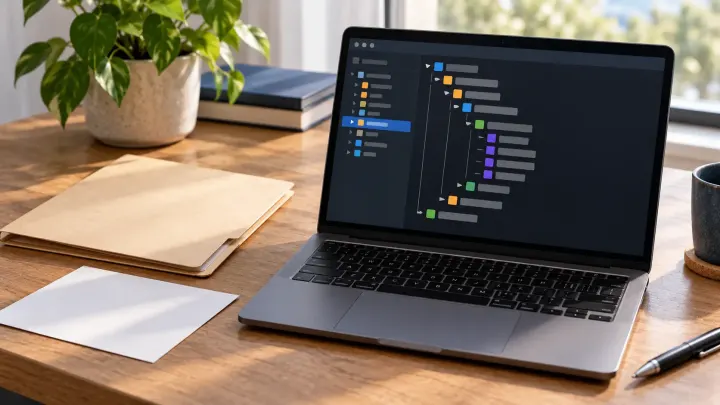
Choose how to open a JSON file based on what you need to do: edit its text in a local editor or inspect its structure in a browser viewer. Keep an unchanged copy before saving edits.
A JSON document contains structured text. RFC 8259 defines JSON as a text-based data interchange format. An object groups named values inside braces, while an array lists values inside square brackets. You can read the text directly or use a viewer to explore those groups.
If double-clicking opens the wrong app, start your chosen text editor and use its Open File command. For example, Visual Studio Code's documented shortcut is Ctrl+O on Windows and Linux, or Command+O on macOS. Select the JSON file from that dialog. You can read it without changing the operating system's default app for every JSON file.
A local editor is the appropriate route for a document that your organization requires you to keep off websites. Remove passwords, access tokens and private records from any example you intend to share. Reading a data file does not require executing it as JavaScript or running a command copied from its contents.
VS Code's JSON editing documentation describes syntax assistance, formatting and folding for JSON files. The editor also has a separate JSON with Comments mode. A file accepted in that mode may still fail in a strict JSON parser. Use the format the receiving program expects when editing a configuration file.
To inspect a nonprivate file as a tree, open JSON Viewer and choose Upload .json, or paste the text into JSON input. Press View. Expand an object's arrow to see its keys and an array's arrow to see its items. Search highlights matching keys and values. Selecting a row shows its path; Copy value copies the selected value.
The viewer accepts files up to 10 MB. To change a value in its read-only tree, edit the input and run View again, or use your local editor. Pasted text and local files are processed in the browser. From URL tries a browser request first and may use Utilza's server to fetch the public response. Avoid URLs containing secrets.
This synthetic example has one record inside an array. The record code is a string, so its leading zeros are part of the value:
{
  "export": {
    "records": [
      {
        "code": "00123",
        "name": "Sample record",
        "requestId": 12345678901234567890
      }
    ]
  },
  "note": "Line one\nLine two"
}
Open export, then records, then the first array item, numbered 0. Its code field has the path $.export.records[0].code and the value "00123". The quoted string differs from the unquoted requestId number. Keep that distinction when copying identifiers into another system.
For a file that is one long line, use JSON Formatter. Paste it or upload a file within its 5 MB limit, choose Beautify and an indentation style, then press Format. Copy the result or download a separate .json file. The formatter preserves number and string literals; it does not need to turn this document into JavaScript numbers to indent it.
A local check on October 28, 2026 ran this example through Utilza's current parser and formatter modules in Node.js v24.15.0 on Windows. Formatting preserved "00123" and the literal 12345678901234567890. Minifying the formatted copy produced the exact original compact text. This checks those modules and that fixture; it does not test a browser upload, OS file associations or the VS Code interface.
If the viewer reports an error instead of a tree, keep the source and read the first reported line and column. The guide to finding an invalid JSON error explains that separate troubleshooting task. If your eventual destination is a spreadsheet, the guide to converting nested JSON to CSV explains how arrays, missing fields and identifier columns change in a flat table.
00123 quoted, and compare long numeric identifiers against the source.Use a text editor to read or edit the text, or a JSON viewer to inspect objects and arrays as a tree. For files that must stay off websites, choose a local editor.
JSON does not need indentation between values. Use Beautify in JSON Formatter for a readable copy, or open the original in JSON Viewer to inspect its tree.
Yes. It is text that an editor can display directly. A viewer parses that text to show its structure. Conversion to CSV is only needed when your destination requires a table.
The editor can show text even when it is invalid JSON. Check the reported line and column for an incomplete download, comments, a trailing comma or content such as an HTML page.
Tools used in this guide
Shows JSON as a collapsible tree with search and copyable paths.
Beautifies or minifies JSON.