Audio ConverterAudio Tools
Convert between common audio formats with bitrate and channel controls.
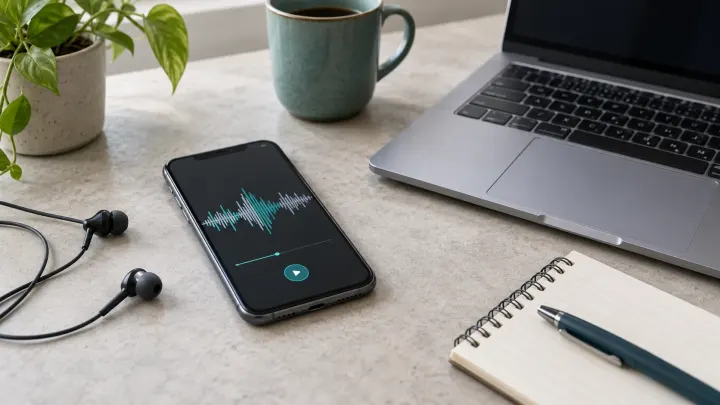
To convert a voice memo to MP3, save a copy of the recording as a file, open it in Audio Converter, choose MP3 and check the downloaded result. Apple's Voice Memos normally exports an M4A file. Keep that original copy because an MP3 export is lossy and may be larger than a compact M4A.
On iPhone, select the recording in Voice Memos, open More, then Share. Choose Save to Files, select a folder and save the copy. These export steps follow Apple's Voice Memos export instructions; menu details can differ with the installed iOS version.
Apple says the default export is M4A. It mixes layers into one file and renders Spatial Audio as stereo. An editable export can instead use QuickTime Audio and retain material for further editing. For the conversion below, obtain the ordinary M4A sharing copy and retain the editable original separately. Utilza does not promise to preserve layers or Spatial Audio in an MP3.
On a Mac, Apple's Voice Memos sharing guide describes dragging the recording into a Finder folder to save a file. Select the saved file in the converter. A recording in another phone or messaging app may use a different format, so inspect its exported filename and make sure it plays before converting.
The Apple-device export instructions here are source-based. The conversion path concerns an exported audio file; it is not a claim that every iPhone model, Safari version or recording option has been tested.
Renaming memo.m4a to memo.mp3 only changes the filename. M4A is an audio container, and the decoder must read the stream inside it before the converter can encode MP3. MDN's media format guide explains the distinction between a container and its audio coding.
An internal check on October 28, 2026 used an AAC M4A made from generated speech. It was not an export from an iPhone. The same FFmpeg WebAssembly core shipped with Utilza ran directly in Node.js v24.15.0 on Windows:
| File | Bytes | Audio settings |
|---|---|---|
| Generated-speech M4A input | 286,461 | AAC, 44,100 Hz, mono |
| Converted MP3 | 297,312 | 128 kbps, 44,100 Hz, mono |
This MP3 was larger than its M4A source. The check confirms the size of these two files; it does not establish an audible-quality difference or a conversion speed on a phone. Export settings and the source codec can differ in real memos, so compare your own downloaded copy.
| What you notice | What to check next |
|---|---|
| The MP3 is bigger than the M4A | The input may already use a low bitrate. Compare another MP3 setting from the original source if the destination imposes a size limit. |
| The file is below the displayed limit but conversion fails | Confirm that the local source plays and is fully downloaded. Decoded duration, channels and memory use can matter more than compressed file size. |
| The export has a QuickTime Audio or unfamiliar extension | Return to the recorder's sharing options and obtain a supported ordinary audio copy. Do not rename the extension to bypass the format check. |
| The downloaded MP3 sounds different | Compare it with the original at comparable playback levels. Check the selected channels and bitrate. Re-encoding cannot undo earlier compression. |
| The recording has background noise or a quiet speaker | A format conversion alone does not repair the recording. Retain the source before using a separate editing or noise-reduction process. |
For the difference between an editing source and a delivery copy, read WAV vs MP3 for voice recordings. To reduce an MP3 that you already have, use MP3 Compressor and compare the result with its source. Working from the original memo avoids using a succession of MP3 exports as the source for the next one.
A compressed source may already have lost detail before conversion. An MP3 copy adds a lossy encoding step. Apple's audio conversion guidance explains that changing a compressed file to an uncompressed format cannot recover discarded data either.
Keep the memo and its exported source. Conversion does not guarantee a smaller file, repair corrupted media, remove noise, preserve every tag or retain editable recording layers. A successful download also does not prove that a separate service will accept the file; check that destination with the downloaded copy.
Apple documents M4A as the default Voice Memos export. Save that copy, then choose MP3 in Audio Converter if the destination specifically needs MP3. Editable exports can use a different format.
No. Renaming .m4a to .mp3 leaves the audio coding unchanged. Use a converter to decode the source and encode a real MP3 copy.
Not always. A compact M4A can be smaller than an MP3 made at the selected bitrate. Compare actual sizes and playback before deciding which copy to send.
For a selected local audio file, the converter reads and processes the media in your browser. The page and conversion engine must still load from the site. Available browser memory and decoding support can limit a recording that otherwise fits the displayed size limit.
Tools used in this guide
Convert between common audio formats with bitrate and channel controls.
Reduce MP3 bitrate and compare the output size before downloading.