Split PDFPDF & Document Tools
Cuts a PDF into parts by ranges, every N pages, or page by page.
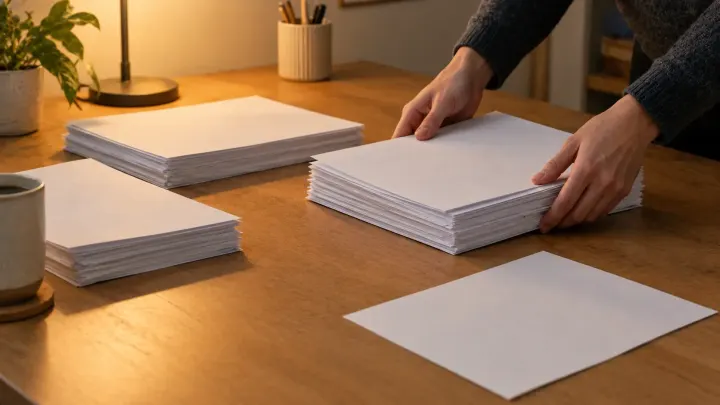
The other person asked for one file. You have a cover, a contract, and a scan that still includes pages they should not see. Merging, pulling pages out, and reordering are three edits to the packet, and none of them rewrite the words on the page.
A contract arrives as three PDFs, or one PDF that still has the draft pages at the back. Printing them and scanning the stack again is a way to get a single file, and it is also a way to blur the type. You usually need a simpler edit: put files in a sequence, drop pages, or move a signature page to the front.
Those edits copy pages. They do not retype them, and they do not shrink them. A scan that was large stays large after a merge. Splitting can even make the pieces add up to more than the original, because each new file carries its own copy of fonts and images those pages use. If every page shares one heavy background, each part includes it.
Password-protected PDFs cannot be opened in these tools. Remove the password in the app that set it, then come back. Work on a copy if the original has to stay intact for your records.
When several files should become one, use Merge PDF. You choose the order, and you can keep only the pages you need from each file. Pages are copied as they are. Nothing is uploaded; the work runs in the browser. The limit is 20 files at once, 100 MB each. Merging will not make a smaller document.
When one file should become several, or you need a page range out of a long document, use Split PDF. You can split by ranges, every few pages, one file per page, or extract just the pages you name. The list of new files is shown before anything is written. One PDF at a time, up to 100 MB. Bookmarks are not copied into the new files. To pull a single page, choose extract pages and type that page number.
When the pages are already in one file and the sequence is wrong, use Organize PDF Pages. Every page is shown as a thumbnail. Drag them into the order you want, and turn, copy, or delete pages before you save. The file stays on your device. This is the step for "page 12 should be page 2," which merge and split only solve by taking the document apart.
A practical order: extract or delete the pages that must not go out, merge the remaining files, then open the result in the organizer if the sequence is still off. Check the thumbnails. A merge follows the order you set, and it is easy to leave a cover in the middle.
Merge PDF combines files in the order you choose, in the browser. Split PDF extracts ranges or single pages from one file. Organize PDF Pages reorders thumbnails when the sequence inside one file is wrong.
Yes. In Split PDF, choose extract pages and enter that page number. You get a new PDF with only that page. Bookmarks from the original are not copied.
Merging copies pages as they are. It does not compress scans. If the sources were large, the result is large.
No. Password-protected PDFs cannot be opened in the merge or split tools. Remove the password in the application that created it, then try again.
Often used together with the When the PDF is the wrong shape.
Cuts a PDF into parts by ranges, every N pages, or page by page.
Joins up to 20 PDFs into one file, with a page range for each.
Reorder, rotate, duplicate, and delete PDF pages on thumbnails.